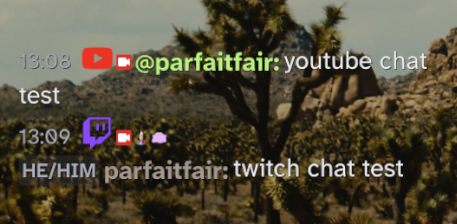
The Chat Overlay has been fully upgraded to support native YouTube Live chat support alongside Twitch! Whether you are exclusively streaming on YouTube or multistreaming to both platforms simultaneously, the overlay handles it seamlessly.
How It Works
Open the chat overlay configuration panel. You’ll see a new field for YouTube Channel or Stream URL.
If you are multistreaming, simply enter both your Twitch channel name and your YouTube Handle (e.g. @parfaitfair). The widget will automatically connect to both platforms and interlace the messages into a single, cohesive feed.
Support for Unlisted Streams
If you stream to YouTube privately using “Unlisted” streams, your broadcast is hidden from your public channel profile. To connect the chat overlay, simply copy and paste the full direct URL of the unlisted video (or the 11-character Video ID) into the configuration input.
The proxy server will automatically extract the ID and connect directly to the hidden broadcast!
Seamless Pre-Stream Auto Connect
There should be no need to refresh the browser source after the initial setup. If you launch OBS and your chat overlay loads before you actually hit “Go Live” on YouTube, the system won’t crash.
The proxy server employs a smart, lightweight background poller. It will silently retry connecting for up to 10 minutes, and the exact second you go live, the chat widget will automatically flip to “Connected.”